
Dashboard
Review workspace statistics and current activity at a glance. Counts reflect available information and may change as records are updated.
Public reference · Plumbline Network
Find your way around the workspace, understand what each account role can do, and get correspondence moving with confidence.
Official role guide
Plumbline Network supports communication among Masonic grand lodges and the Conference of Grand Masters. Roles determine account administration and a small number of protected actions; the User and CCFC roles share the same core workspace tools.
01 · First access
Accounts are provisioned by an administrator. If you have not received access, contact your grand lodge or use the public support channel.
02 · Authority and scope
There are three account roles: User, CCFC, and Admin. User and CCFC accounts work in the same core tools; CCFC is a correspondence-focused assignment, not a blanket grant of administrative rights.
| Capability | User | CCFC | Admin |
|---|---|---|---|
| Core workspace | Use shared directories, requests, notices, documents, calendar, messages, and verification. | Same core tools as User, with correspondence work tied to the assigned jurisdiction. | Use the same core workspace and workflows. |
| Requests | Create and manage permitted requests; status decisions are limited to the receiving jurisdiction or Admin. | Same request capabilities and limits as User. | Manage requests, including protected status changes. |
| Notices | Browse, search, read, and verify references. | Same notice access as User. | Create, edit, delete, republish, bulk-upload, and manage notice attachments. |
| Calendar | Create events, invite participants, respond, and manage events you organize. | Same calendar capabilities as User. | Same capabilities, plus administrative event oversight and integration settings. |
| Administrative controls | Personal profile and notification preferences only. | Personal profile and notification preferences only. | Manage users, CCFC roster, notices, jurisdiction status, and system configuration. |
A role does not override jurisdiction rules. In particular, an originating jurisdiction removed from COGM cannot create, update, or delete requests. Request status changes belong to the receiving jurisdiction or an Admin.
03 · Shared workspace
Review workspace statistics and current activity at a glance. Counts reflect available information and may change as records are updated.
Browse or search jurisdiction records and recognition information. The removed-from-COGM status control is reserved for administrators.
Search the correspondence directory and review contact details. Export downloads the full roster, not just the results currently shown after searching. See how to export the CCFC roster. Contact accuracy matters for routing.
Browse and search the officer directory to identify the appropriate office or jurisdiction contact.
Create a request, add or edit its details, attach supporting files, select recipients, and review its tracking history. You may update or delete requests when jurisdiction rules permit. Status changes—such as decisions by the receiving jurisdiction—are restricted to that receiving jurisdiction or an Admin. An originating jurisdiction removed from COGM cannot create, update, or delete requests.
Choose intended recipients carefully. Notification delivery is not guaranteed: it depends on recipient selection, current contact details, preferences, and configured email/SMS services.
Browse, search, and read official notices, open available attachments, and use Verification to look up a notice by its reference. Notice publishing and changes are administrator-only.
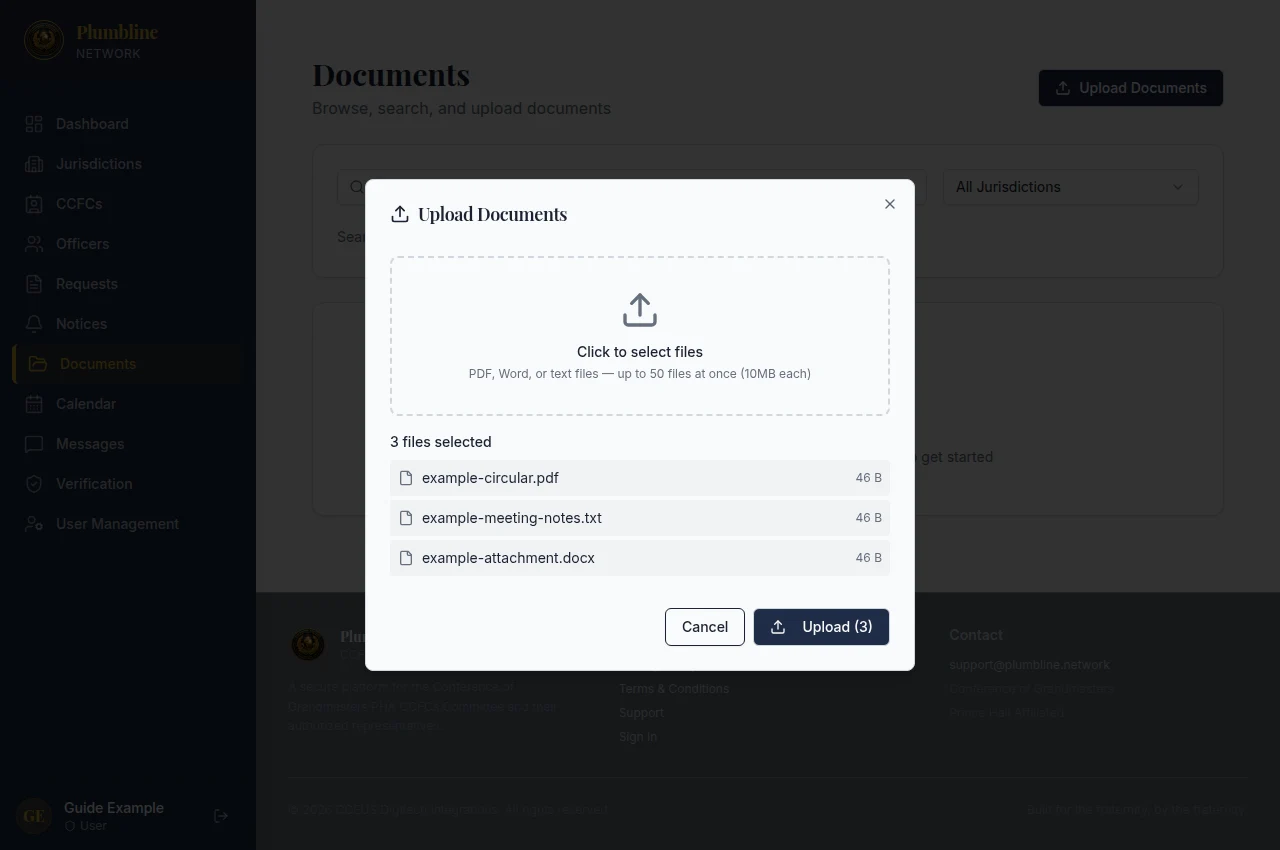
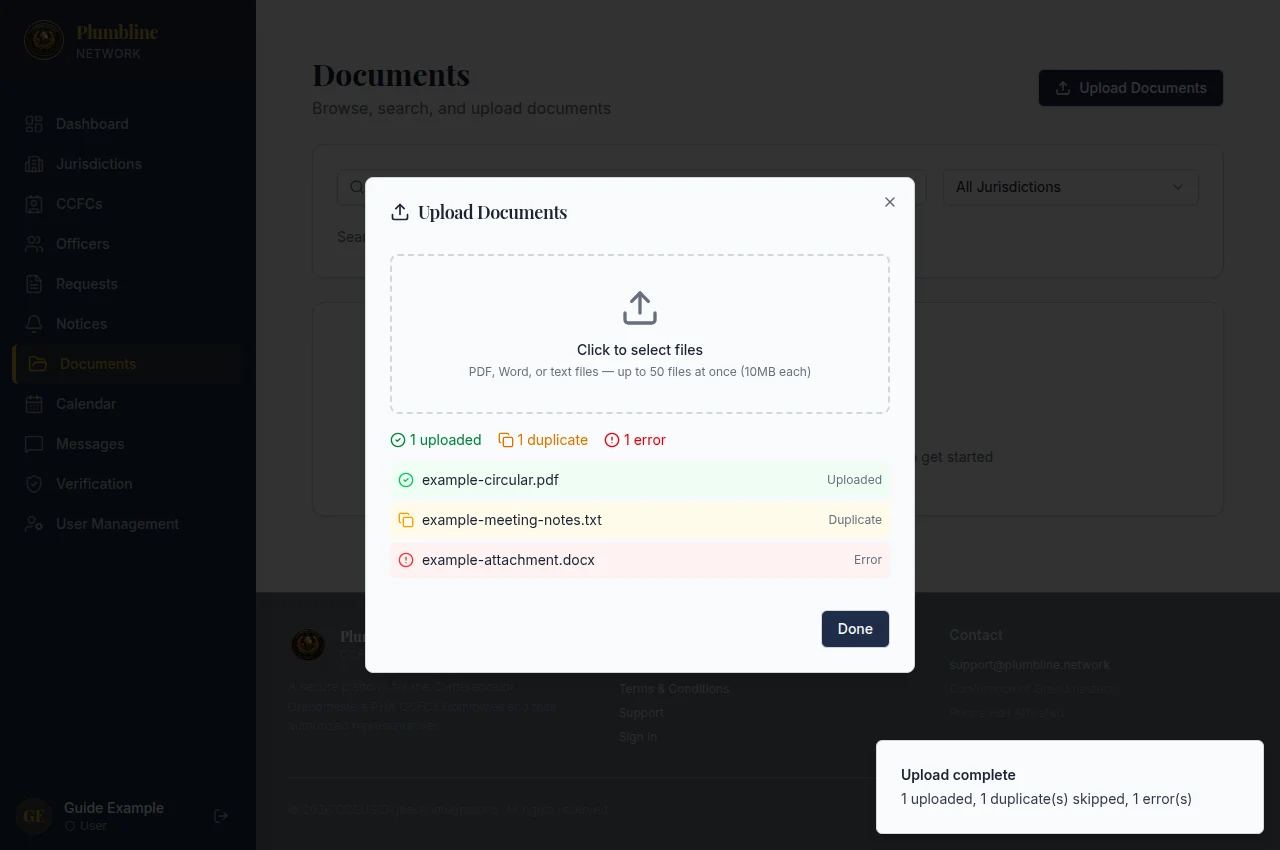
Upload one document or a batch, browse and search, preview or download files, and delete documents where permitted. Follow the document import steps. Classification and semantic search rely on configured analysis services and may not be available in every environment.
Create events, add attachments, invite participants, and choose visibility: all users, a jurisdiction, or invitees only. Respond to invitations with an RSVP. Flight links or suggestions may appear where available. Google Calendar connection and synchronization depend on administrator configuration. Event edits and deletion are available to the organizer or an Admin—not to every attendee.
Start and continue conversation threads with users in the workspace. Use verified contact paths and follow your jurisdiction’s procedures for sensitive correspondence.
Review and update the personal profile fields available to you and set notification preferences. Password and 2FA settings are under account/security. This area is not the administrator’s user-management console.
04 · Shared workspace · CCFC directory
User, CCFC, and Admin accounts can download a copy of the CCFC roster from the CCFCs page. You must be signed in to use the workspace.
CCFC_Roster_YYYY-MM-DD; the extension is .pdf, .csv, or .xlsx.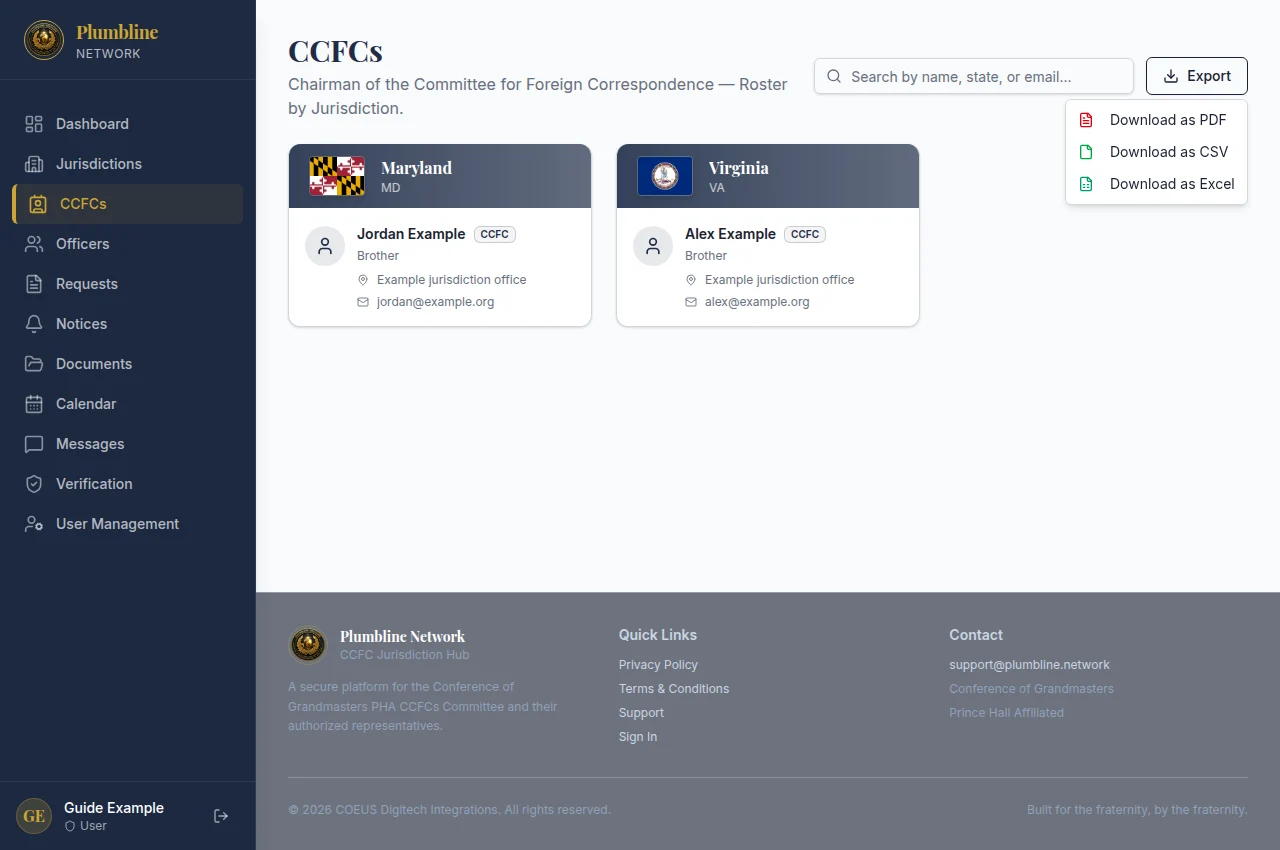
Important: Export always downloads the full roster, even when the directory is filtered by a search. The downloaded file contains private contact information; share it only with authorized recipients and handle it according to your organization’s procedures.
05 · Shared workspace · Documents
Signed-in workspace users can add documents individually or in a batch. Uploads are not public; you need an account and access to the workspace.
The file picker accepts PDF, Word (.doc, .docx), text (.txt, .rtf), spreadsheet (.xls, .xlsx, .csv), and image (.png, .jpg, .jpeg) files. Acceptance by the file picker does not guarantee every format will be processed or analyzed in every environment.
06 · Protected administration
Admins have the shared workspace capabilities plus controls for account provisioning, publishing, roster stewardship, jurisdiction status, and configured services.
Create users and manage their profiles, role, jurisdiction assignment, and active status. Administrators can reset passwords, reset 2FA, and delete accounts.
Add or reassign CCFC contact records, link roster entries to user accounts, and create CCFC accounts as needed.
Create, edit, delete, republish, and bulk-upload notices. Administrators can also add, change, or remove notice attachments.
Manage the removed-from-COGM status control in the jurisdiction directory. This action is administrative and affects request permissions for the originating jurisdiction.
Review administrative configuration, communication-service status and tests, data export, and document-analysis or AI service health. A service indicator does not guarantee delivery or analysis availability.
Manage Google Calendar synchronization settings and review inbound sync/watch status. Administrators can also maintain airport overrides used for flight suggestions.
07 · Common questions
No. User and CCFC roles share the core workspace and most workflow capabilities. The CCFC role is correspondence-focused and associated with an assigned jurisdiction; it does not grant broad administrator privileges.
Only the receiving jurisdiction or an Admin can change request status. Other request actions remain subject to the request’s jurisdiction rules. An originating jurisdiction removed from COGM cannot create, update, or delete requests.
Delivery depends on the selected recipients, their saved contact details and notification preferences, and the configured communication services. Email and SMS availability or delivery is not guaranteed. Confirm routing in the record and contact support if the issue continues.
Notice publishing and changes, user administration, and removed-from-COGM status controls are Admin-only. Ask your organization’s administrator to make a permitted change.
No. Event changes and deletion are available to the event organizer or an Admin. Invitees can RSVP. Google Calendar features depend on the integration being configured.
No. Classification, semantic search, and document analysis depend on configured services and their availability. Use the regular document browsing or keyword search options when these services are not available.
Use the official support page for recovery guidance. Do not share credentials or verification codes with anyone, including someone claiming to provide support.
08 · Help and safety
For sign-in, account recovery, access, or workspace questions, use /support. Include a concise description of the issue and the affected feature; do not include passwords, 2FA codes, private correspondence, or unnecessary personal information.
Protect your account by using the approved sign-in route, keeping your 2FA method current, and confirming the intended recipients before sending formal correspondence. If a contact, role, jurisdiction, or service configuration needs administrative correction, contact an authorized Admin.